

TL;DR
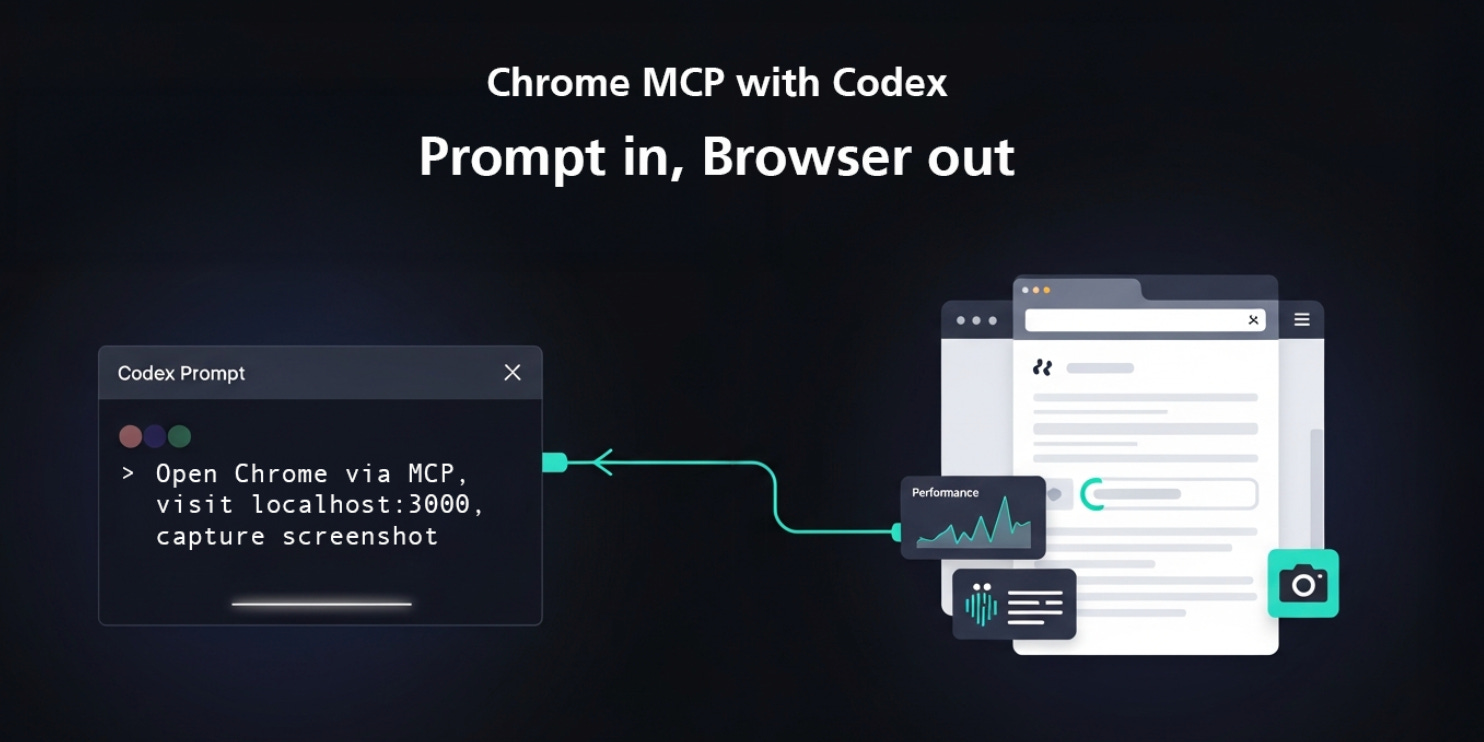
Chrome DevTools MCP lets Codex drive a full Chrome browser through MCP, so you can test real flows, trace performance, and debug network issues from inside a Codex session.
MCP is how Codex talks to tools - the Model Context Protocol defines a standard way for agents to call local and remote tools over a simple JSON protocol.
Chrome DevTools MCP exposes a live browser - Codex can open pages, click, fill forms, wait for elements, record traces, inspect network calls, and inspect console output through a single MCP server.
Codex setup is simple but version sensitive - you need a working Codex install, a current Chrome, and Codex must run on Node 22.12.0 or newer for the Codex process itself or the MCP handshake fails.
Start with an isolated, almost zero setup config - run Chrome DevTools MCP in an isolated mode using
npx chrome-devtools-mcp@latestin your Codexconfig.tomlso the server auto launches Chrome and cleans up its profile after use.Use a custom Chrome session for environment sensitive flows - switch to an attached mode when debugging issues tied to a specific user, cookie set, or browser environment. Attach Chrome MCP to a Chrome instance you started with a dedicated user data directory and remote debugging port.
1. Context / Problem
Most Codex usage stays inside code and the terminal. That works for pure logical changes, but sometimes it would be useful to have Codex play through a real browser flow. You end up copy pasting logs, URLs, and error messages between Chrome and Codex instead of letting the agent reproduce the issue itself.
Chrome DevTools MCP closes that gap. It gives Codex a full Chrome DevTools surface through MCP so the agent can open real pages, click through UI flows, wait on selectors, inspect network calls, run JavaScript, and record performance traces.
The useful part is that you do not need a custom Playwright test harness or a separate automation stack. With one MCP server and a small Codex config change, you get a browser session that Codex can control like any other tool.
In this guide I will focus on three things:
A quick mental model for MCP and what Chrome DevTools MCP adds on top.
A baseline configuration that auto starts Chrome from Codex and that you can keep in your
config.toml.An advanced profile that attaches to a long lived Chrome session for environment sensitive flows (based on a real issue I had), plus the failure modes you are likely to hit.
2. Mental model
2.1 What MCP is in practice
In practice, MCP is a protocol that lets an agent talk to tools as if they were local commands. The agent speaks JSON over standard input and output, and the MCP client handles communication through requests, and responses. Codex uses this to talk to local tools such as file systems, terminals, and browser controllers without baking those integrations into the model itself.
For you as a developer, the important part is that each MCP server becomes an internal tool. Each tool has a name and parameters. Codex decides which tool to call and in what order, but the MCP client handles the transport and execution.
2.2 What Chrome DevTools MCP adds
Chrome DevTools MCP is an MCP server that wraps Chrome DevTools and Puppeteer. It starts or attaches to a Chrome instance and exposes a set of tools that Codex can call.
At a high level you get:
Input tools such as
clickandfill_formso Codex can interact with the page like a user. In practice this means you can ask Codex to log in, type into fields, submit forms, and trigger buttons.Navigation tools such as
navigate_pageandwait_forso the agent can move through flows and capture state. In practice this covers opening URLs and stepping through wizards.Performance tools such as
performance_start_traceandperformance_analyze_insightso Codex can record and interpret traces. In practice you can have Codex run a trace for a route and tell you which scripts or requests take the most time.Debugging tools such as
evaluate_script,list_console_messages, andlist_network_requestsso the agent can see console output and network behavior. In practice this is how you have Codex pull console errors, inspect failing requests, or read values directly from the page.
Under the hood it uses Puppeteer and Chrome DevTools, but from a Codex session it is just another MCP server with tools you can call.
There are two important constraints:
The Chrome profile that the MCP server uses is fully visible to Codex. Cookies, local storage, and page content are accessible through the tools.
The MCP server must be able to either start Chrome itself inside your environment or attach to a Chrome instance that you start with remote debugging enabled.
2.3 How this changes Codex workflows
With Chrome DevTools MCP wired into Codex you can:
Ask Codex to open an URL, reproduce a bug, and show you the exact steps and network calls involved.
Have Codex run a full OAuth login flow against a provider, capture the redirect URL, and explain why a callback fails in a specific environment.
Record performance traces for a specific route, compare them between builds, and have Codex highlight slow scripts or layout shifts.
Hand Codex a broken form flow, let it click through and then ask it to propose fixes in the codebase.
It feels like a no setup browser automation rig that you can call from the same place you already run your agentic coding tasks.
3. Concrete example
3.1 Baseline: an isolated Chrome MCP session
Start from a machine where you already have:
A working Codex CLI installation.
Google Chrome installed in a current stable version.
Node 22.12.0 or newer for the Codex process itself.
If you have not set up Codex yet, follow the separate setup guide Codex CLI in Practice: Install It Once and Trust It so you have codex installed, logged in, and pointed at a config directory you trust.
In your Codex config.toml, add a Chrome DevTools MCP server entry:
[mcp_servers.chrome-devtools]
command = “npx”
args = [
  “-y”,
  “chrome-devtools-mcp@latest”,
  “--isolated=true”,
  “--headless=false”,
  “--chromeArg=--disable-extensions”,
  “--chromeArg=--no-first-run”,
  “--chromeArg=--disable-sync”,
]
startup_timeout_sec = 30.0
This configuration does a few things:
Uses
npxto runchrome-devtools-mcp@latestso you always pick up the newest Chrome MCP server.Runs Chrome in an isolated user data directory that is created per run and cleaned up when the browser closes.
Disables extensions, first run prompts, and sync to keep the session predictable.
Starts Chrome in non headless mode so you can see the browser windows as Codex drives them.
Once this entry is in place, restart Codex so it reloads the MCP configuration. Then run a quick test from inside a Codex session:
Prompt: Use chrome-devtools to check the performance of https://developers.chrome.com. Tell me what stands out in the trace, list any console errors, and summarize the slowest network requests.Codex should:
Start the Chrome DevTools MCP server through
npx.Launch Chrome with a fresh profile.
Open the page, record a performance trace, and inspect console and network output.
Return a summary of the performance insights plus any errors and slow requests it found.
If you see the browser open and some activity in the window, the baseline functionality is working.
3.2 A real user flow with console and network checks
Once the basics work, treat Chrome MCP like a shared QA browser that Codex can drive. For example, you can ask Codex to run through a checkout flow:
Prompt:
Open localhost in chrome-devtools.
Log in using the test account credentials from AGENTS.md, add any product to the cart, run through checkout until the final confirmation page, then:
- List any console errors during the flow.
- Export or summarize the key network requests for the checkout API calls.
- Tell me where the slowest step is and how it could be optimized.
Behind the scenes, Codex will call tools like navigate_page, wait_for, fill_form, click, and list_network_requests. You do not need to know the tool names in advance, but understanding that they exist makes it easier to understand what Codex is doing.
3.3 Advanced: attach to a long lived Chrome session
For environment sensitive flows, I use a different pattern. Instead of letting Chrome MCP start its own headless browser, I start Chrome myself with a dedicated profile and remote debugging enabled, then tell Chrome MCP to attach to that session.
On macOS that looks like:
/Applications/Google\ Chrome.app/Contents/MacOS/Google\ Chrome \
  --remote-debugging-port=9222 \
  --user-data-dir=/tmp/atlas-mcp \
  --disable-features=AutomationControlled \
  --disable-blink-features=AutomationControlled \
  --no-first-run \
  --no-default-browser-check
This starts a fresh Chrome profile in /tmp/atlas-mcp, opens a window, and exposes a remote debugging port on 127.0.0.1:9222. I log into whatever providers or test apps I need from that window first so the cookies and session state live in that profile. In one case this was an OAuth flow that only failed when a specific bot detection system saw a headless browser.
Then I point Codex at that running browser by changing the MCP config to use --browser-url:
[mcp_servers.chrome-devtools]
command = “npx”
args = [
  “-y”,
  “chrome-devtools-mcp@latest”,
  “--browser-url=http://127.0.0.1:9222”,
  “--headless=false”,
  “--acceptInsecureCerts=true”,
]
startup_timeout_sec = 30.0
Now Chrome MCP does not launch Chrome at all. It attaches to the already running browser that has my cookies, logins, and any manual steps I completed. From Codex this still looks like the same chrome-devtools toolbox, but the agent is operating on a real browser session that has already gone through whatever checks the site applies.
The trade off is that the remote debugging port gives any process on the machine control over that browser. I keep this pattern limited to a dedicated profile with no sensitive data and I close that Chrome instance as soon as I am done.
4. Solution / Playbook
This is the pattern I use when setting up Chrome DevTools MCP in Codex.
Confirm runtime and Codex basics
Make sure the host has a current Node runtime and a working Codex install. Run
node --versionand aim for at least 22.12.0 for the Codex process itself, thencodex --versionand a simplecodexsession in a real repo. If the baseline Codex CLI is unstable, fix that before adding Chrome MCP.
Add a simple Chrome MCP entry in config (isolated mode)
Start with a single
mcp_servers.chrome-devtoolsblock usingnpx chrome-devtools-mcp@latest,--isolated=true, and a generousstartup_timeout_secas in section 3.1. This gets you a disposable browser profile and avoids tangling with your normal Chrome profile. Keepheadless=falseat first so you can see what Codex is doing.
Run a short smoke test prompt
Inside a Codex session, ask the agent to check the performance of a simple public site and report console errors and slow network requests. If Chrome does not open or the response hangs, check the Node version, the error output in the Codex pane, and whether
npxcan fetch the MCP package.
Tighten headless and isolation settings for day to day use
Once you trust the wiring, you can flip
--headless=trueto keep the browser off your desktop. I still keep--isolated=trueby default so each run starts with a clean profile and you do not leak cookies or local storage between sessions. For long running investigations I sometimes switch back toheadless=falseso I can watch Codex work.
Introduce a second config for environment sensitive flows (attached mode)
When you need Codex to walk through flows that depend on specific cookies, users, or browser behavior, start a dedicated Chrome instance yourself with a custom user data directory and remote debugging enabled as in section 3.3. If the site also blocks headless automation, this is where you pass flags like
--disable-features=AutomationControlled. Log in manually, then change the Codex MCP config to use--browser-url=http://127.0.0.1:9222so Chrome MCP attaches to that session instead of starting its own.
Lean on performance and debugging tools explicitly
When debugging something non trivial, ask Codex to record a trace and analyze it rather than just clicking around. Have it call the performance tools, capture network requests, and pull console logs. In practice this makes the difference between a vague bug report and a concrete list of issues or failing endpoints that map straight back to code.
Add a Chrome MCP smoke test to bigger Codex tasks
For larger changes, I like to end the Codex task with a short chrome-devtools run over the main flow. I ask Codex to play through the flow and then tell me whether the console and network tabs look healthy. This catches obvious breakage before I spend time on a manual click through.
Codify your defaults in version control
I keep a checked in
config.tomltemplate in my dotfiles so every machine has the same Chrome MCP defaults. That includes which Chrome flags to pass, how long to wait for startup, and whether MCP should run headless by default. It turns Chrome MCP from an experiment into a standard part of the Codex environment.
5. Failure modes & gotchas
Chrome MCP adds its own set of failure modes on top of whatever Codex already has. These are the ones I see most often.
5.1 Runtime and environment
Node version too old for MCP
If Codex runs on an older Node version, the Chrome MCP handshake can fail with an error like:
⚠ MCP client for chrome-devtools failed to start: MCP startup failed: handshaking with MCP server failed: connection closed: initialize responseFix this by upgrading the Node runtime that Codex uses to at least 22.12.0 (see section 3.1) and restarting Codex. If node --version still shows an older release, check your shell PATH and any version managers that might be pinning Node.
Chrome cannot start from inside a sandboxed environment
Some MCP clients and shells run MCP servers in a sandbox that does not let Chrome create its own sandbox processes. When that happens,
chrome-devtools-mcpmay fail to launch Chrome at all. The usual workaround is to start Chrome yourself with--remote-debugging-portand a custom user data directory, then point Chrome MCP at that running instance with--browser-url. This bypasses the sandbox constraint because Chrome is running outside the MCP sandbox.
5.2 Remote debugging and security
Remote debugging opens a powerful control surface
When you start Chrome with
--remote-debugging-port=9222, any process on your machine can connect and control that browser. Only use this mode with a dedicated user data directory and avoid logging into sensitive sites from that profile. Closing that Chrome instance closes the control surface.
5.3 Site behavior and automation detection
Headless automation blocked by bot detection or captchas
Some sites refuse to serve real content to headless browsers or detect automation. In those cases I start Chrome manually with flags like
--disable-features=AutomationControlledand--disable-blink-features=AutomationControlled, plus a dedicated--user-data-dir. Once I have logged in and solved any captchas by hand, I let Codex attach via--browser-urlso it inherits the specific environment and authenticated session.
5.4 Startup stability
Startup flakiness and slow environments
On slower laptops or when Chrome updates itself in the background, the MCP server can hit a timeout before Chrome is ready. Increasing
startup_timeout_secin the MCP config and passing a--logFilewithDEBUG=*in the environment makes it much easier to see what Chrome DevTools MCP is doing before it fails.
5.5 Profile data and contamination
Unexpected data or cookies from reused profiles
If you let Chrome MCP use a long lived profile, any cookies, extensions, or experimental flags in that profile affect Codex runs. That can be useful for reproducing a user specific bug, but it also means you need to be deliberate about which profile Codex uses. I default to isolated profiles and only attach to shared ones when I have a specific reason.
In my own projects I treat Chrome MCP as a power tool for debugging and flow exploration, but not as a replacement for browser tests. I still keep my canonical checks in Playwright or Cypress and use Codex plus Chrome MCP when I need fast, targeted investigations and console or network traces that would take longer to script by hand.
5.6 How I actually run this
On my laptops I keep Chrome MCP wired into Codex but fairly conservative. Day to day I use the isolated config with --headless=true so Codex can open and close its own browsers without touching my regular Chrome profile. When I am debugging something subtle, I flip headless to false so I can watch Codex work through the flow.
For environment sensitive issues, like an OAuth flow that only fails for a specific cookie set or login state, I start a dedicated Chrome instance with a throwaway user data directory and --remote-debugging-port. I log in once by hand so the profile has the right cookies and session, and then attach Chrome MCP to that session until I finish the investigation.
6. Variants & extensions
Once the basics work, there are a few ways to adapt this pattern.
Switch Chrome channels for feature testing
Chrome DevTools MCP supports a
--channeloption so you can use canary, beta, or dev builds of Chrome. This is useful when you want Codex to verify behavior that depends on upcoming browser features without changing your daily browser.
Use
--viewportand emulation for mobile flowsYou can set an initial viewport like
1280x720with the--viewportoption and combine it with Chrome DevTools emulation tools to approximate mobile devices. I use this when asking Codex to test responsive layouts or mobile only flows before writing full end to end tests.
Attach from containers or remote hosts
In containerized or remote setups where starting Chrome from inside the container is painful, running Chrome on the host with remote debugging and pointing the containerized MCP server at it via
--browser-urlis often simpler. You still need to handle any port forwarding, but the pattern is the same.
Further reading
Codex CLI in Practice: Install It Once and Trust It – a separate setup guide that covers installing Codex, pinning Node versions, and managing
config.tomlfor everyday work.Chrome DevTools MCP reference – the official documentation for
chrome-devtools-mcp, including the full tool list, configuration flags, and troubleshooting guide.Chrome remote debugging documentation – details on
--remote-debugging-port, user data directories, and the security model for DevTools remote debugging.
If you found this useful, consider subscribing to get future deep dives on agentic development and browser based workflows with Codex.