

TL;DR
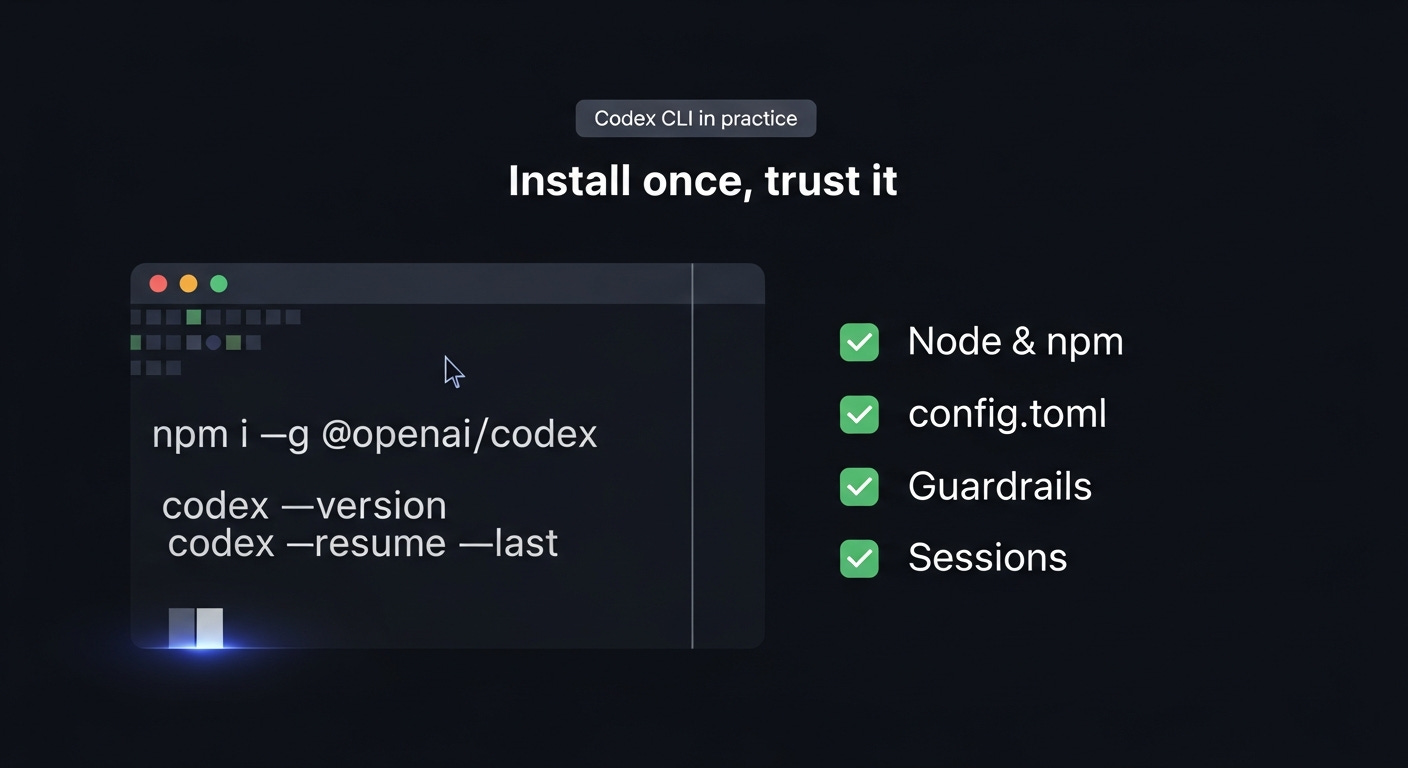
Installing via npm keeps you on the latest version and makes Codex available just like any other CLI tool.
Use npm for faster releases -
npm i -g @openai/codextracks the newest CLI builds hours (sometimes days) before Homebrew or OS stores update.Check the fundamentals first - Codex needs Node 16+ (I recommend at least 22.12.x for MCP to work), a ChatGPT Plus/Pro/Business/Edu/Enterprise login or API key.
Set Codex defaults in config - Use codex
config.tomlplus profiles/projects to define sandbox mode, approval policy, and model/provider defaults.Confirm Codex runs end-to-end - After installation, run
codex --version, log in withcodex login, then startcodexin a real repo and make sure you land in an interactive shell that can see your files.
1. Context / Problem
Codex now spans the browser, GitHub, IDEs, and the terminal, but the CLI is how all tools interact with it. However, when the initial setup feels unreliable, engineers quickly decide to not use Codex.
Right now, the @openai/codex npm package tends to ship releases a few days before Homebrew, OS-specific installers, or IDE extensions. The fastest way to get a stable CLI into your workflow is to treat it like any other global Node tool.
npm i -g @openai/codexCLI vs Cloud (quick clarification): Codex (the CLI) is an open-source wrapper that runs on your machine and talks directly to OpenAI models. Codex Cloud is a hosted service that connects to your repositories and spins up sandbox VMs. It boots the same CLI inside them, and returns the output back to you. When this article says “install Codex,” it refers to the local CLI. The cloud product simply runs that CLI on managed infrastructure.
You can install Codex on macOS, Linux, and Windows 11 (via WSL2). Running Codex natively on Windows is possible, but it relies on an experimental sandbox that cannot fully protect directories writable by everyone. The docs recommend using WSL2 when you need the hardened Linux sandbox. Also note that native Windows and WSL2 have separate home directories by default, so each environment keeps its own Codex state unless you deliberately point both at the same CODEX_HOME.
For each Codex session, your configuration file is the source of truth. Codex looks for it under CODEX_HOME. If that environment variable is unset, it defaults to ~/.codex on macOS, Linux, and WSL2, and to %USERPROFILE%\.codex on native Windows. Every sandbox mode, approval policy, profile, and trusted project entry lives under that directory, and Codex can resume an old session or apply experimental flags on whatever defaults it finds there.
I keep that directory under my dotfiles repository so I can diff changes and keep environments aligned. This walkthrough focuses on getting those defaults right before you use it for real work.
2. What this guide covers
This guide is a practical setup pattern you can reuse across machines:
Why Codex CLI needs deliberate setup – when installs feel buggy, most engineers quietly stop using the tool.
Five-layer mental model – runtime, CLI surface, identity, configuration, and sessions/history as the core layers you harden.
Concrete example (atlas-inventory) – a full walkthrough of installing via npm, authenticating once, wiring
config.toml, and provingcodexworks end-to-end in a real TypeScript service.Reusable playbook – the small set of decisions I repeat on every host before trusting Codex in a repo.
Failure modes & gotchas – the ways Codex setup most often goes wrong and how to map each issue back to one of the five layers.
Variants & extensions – how to adapt the pattern for locked-down laptops, CI, remote dev containers, and WSL2.
3. Mental model
Think of Codex setup as five layers you harden from the outside in:
Runtime layer
Node >=16, npm (or bun), and your shell
PATH. In practice we target Node 22.12.0+ so MCP servers and future tooling work without hacks. If Node is out of date or the global npm prefix is not onPATH, the CLI will never launch. Lock this down before touching Codex itself.
CLI surface
Codex ships a multi-tool CLI with interactive (
codex), scripted (codex exec), resume (codex resume), patch (codex apply), sandbox debugging, MCP, and cloud helpers. Decide up front which surfaces belong in your day‑to‑day workflow so you can document the minimal flag set you need. I keep a short list of the two or three commands I rely on and treat everything else as optional.
Identity layer
Codex can authenticate either with your ChatGPT plan (Plus, Pro, Business, Edu, or Enterprise) or an API key tied to an Org/Project. Pick one, store it via
codex login, and audit who owns the credentials. If you plan to use OSS providers, add the relevant--ossor--local-providerdefaults now so nobody improvises later.
Configuration layer
CODEX_HOME/config.tomlstores global defaults, profiles, project trust levels, and feature toggles. By defaultCODEX_HOMEresolves to~/.codexon macOS/Linux/WSL2 and%USERPROFILE%\.codexon native Windows, but you can override it for shared or network locations. When you pass--profile,--sandbox, or--ask-for-approval, you are just overriding this file. Treat it like infrastructure.
Session & history layer
Codex writes rollouts and history under
CODEX_HOME/sessionsandCODEX_HOME/history.jsonl. This is what gets pulled when doingcodex resume, but only if the directory is writable and included in backups the way you’d treat any other tooling state. I once lost a week of sessions to a cleanup script, so now I tag that path as “never delete.”
4. Concrete example
Imagine onboarding Codex to a TypeScript service called atlas-inventory that lives in ~/Projects/atlas-inventory (on Windows, think C:\Users\you\Projects\atlas-inventory and substitute whatever path matches your setup). The goal is to let engineers run Codex in workspace-write mode with on-request approvals so the agent can edit files but still pause before risky commands.
First, bring the CLI onto the box and prove it runs end-to-end:
node --version                      # expect at least 18.x (I recommend at least 22.12.x)
npm i -g @openai/codex              # install the latest CLI from npm
codex --version                     # confirm the command works
codex login                         # or run `codex login --with-api-key` to login via ChatGPT API
codex login status                  # verify
codex                               # start codex
Next, setup the config in CODEX_HOME/config.toml (by default ~/.codex/config.toml on macOS/Linux/WSL2 or %USERPROFILE%\.codex\config.toml on native Windows):
model = “gpt-5.1-codex”
sandbox_mode = “workspace-write”
approval_policy = “on-request”

[projects.”/Users/marco/Projects/atlas-inventory”]
trust_level = “trusted”
sandbox_mode = “workspace-write”
approval_policy = “on-request”

[profiles.”oss-lab”]
model = “llama-guard”
oss_provider = “lmstudio”
sandbox_mode = “read-only”
The [projects] block forces workspace-write + on-request whenever the CLI sees that absolute path, so even if you forget to pass flags you stay inside the specified permissions. Codex requires absolute paths here (~ will not resolve), so capture the real path you use. The optional profile demonstrates how to carve out a different set of defaults (for example, an OSS lab that must remain read-only) and you can use it when needed via codex --profile oss-lab.
If you want to see how all of this fits together in a real config.toml, here is the template I use:
model = “gpt-5.1-codex-max”            # Default model for a new session unless a profile/CLI flag overrides it
model_reasoning_effort = “medium”      # Ask the model for a moderate amount of reasoning

approval_policy = “on-request”         # Let Codex auto-run safe commands but prompt for risky ones
sandbox_mode    = “read-only”          # Keep sessions read-only until I explicitly opt into workspace-write
project_doc_max_bytes = 98304          # Default truncation clipped AGENTS.md at ~500 lines, so I raised the limit to cover roughly 3× that content
model_auto_compact_token_limit = 263840  # Start compacting when only ~3% of the 272k window is left (instead of the default ~10%) so sessions stay longer before summarizing
tool_output_token_limit = 25000        # Truncate long tool outputs so instructions and code stay visible

[sandbox_workspace_write]
network_access = true                  # When I switch to workspace-write, allow outbound network access

# macOS example path, replace with the absolute path to your repo
[projects.”/Users/marcohefti/Projects/atlas-inventory”]
trust_level = “trusted”                # Skip the trust prompt and apply repo-specific overrides for this path
# Windows example (escape backslashes):
# [projects.”C:\\Users\\you\\Projects\\atlas-inventory”]

[features]
web_search_request   = true            # Enable the built-in web_search tool
apply_patch_freeform = true            # Opt into the experimental free-form apply_patch tool so Codex can edit multiple files in one patch
rmcp_client          = true            # Enable the experimental Rust MCP client for MCP login/auth management
Codex loads this file from CODEX_HOME/config.toml regardless of OS, and the [projects] keys must match the absolute path format of that environment (/Users/... on macOS/Linux/WSL2, C:\Users\... on native Windows).
Per-project entries only use trust_level today, so sandbox/approval overrides still happen via CLI flags or profiles. Likewise, there is no global exec_timeout_ms field. Timeouts are specified per tool call, so I leave it out of the config and document desired timeouts in the AGENTS.md or runbooks instead.
Now an engineer can start a session with:
cd ~/Projects/atlas-inventory
codex
Do a single task, exit, and then resume to prove history works:
# Show the most recent sessions
codex resume

# Jump straight back into the latest run
codex resume --last
5. Failure modes & gotchas
If something feels off, it is usually one of these:
Runtime out of sync. Anything older than Node 16.20 tends to fail with errors.
Global npm path not actually on
PATH. Ifcodexis “installed” but the shell cannot see it, checknpm config get prefixand verify that prefix’sbindirectory is exported (/opt/homebrew/bin,/usr/local/bin,%APPDATA%\npm, or similar). Whencodex: command not foundshows up, it is almost always this.Auth cache confusion. Mixing ChatGPT device auth and API-key auth on the same host can confuse the CLI cache. If you see odd login behavior, treat that as a signal to redo authentication. Run
codex logout, removeCODEX_HOME/auth.json, and log back in cleanly.History disappearing.
codex resumewill not find anything ifCODEX_HOMElives on a non-writable path.Multiple installs fighting each other. If the CLI keeps telling you “✨ Update available!” after
npm i -g @openai/codex@latest, there is probably another Codex binary somewhere onPATH. Usewhich codex(orGet-Command codexin PowerShell) to find the real binary, remove the others, and re-runcodex --versionto confirm.Network and proxy oddities. On locked-down networks, Codex might start fine and then silently fail API calls. Exporting
HTTPS_PROXY/NO_PROXYand testing with a simplecodex exec -- curl ...call is usually enough to confirm whether the network path is healthy.
6. Variants & extensions
When npm is locked down. If you cannot install globals via npm (for example, on managed laptops),
brew install --cask codexis a reasonable fallback as long as you accept that it may lag a couple of releases behind npm.Remote and multi-host setups. For remote dev containers or WSL2, mounting a shared
CODEX_HOMEand runningcodex --sandbox read-onlyby default lets you reuse history and config without giving a new environment full write access until you trust it.
Further reading
Codex Quickstart (developers.openai.com) - Official overview of supported surfaces, auth requirements, and install paths.
Codex CLI reference - Flag-by-flag documentation plus notes on experimental commands.
Codex CLI getting started guide - Help Center article that summarizes approval modes, update commands, and troubleshooting.
If you found this useful, consider subscribing to get future deep dives on agentic programming and AI-assisted development.
awesome guide!